


Authenticator - 2FA & Password
2.957.00 Reviews
App Specs
- Version
- 72.0
- Updated On
- License
- Free
- Downloads
- 1,000,000+
- Developer
- FIRE Ltd
- Categories
- Tools
- Platform
- Android
Screenshots
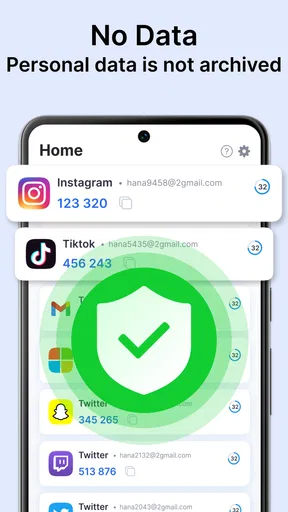
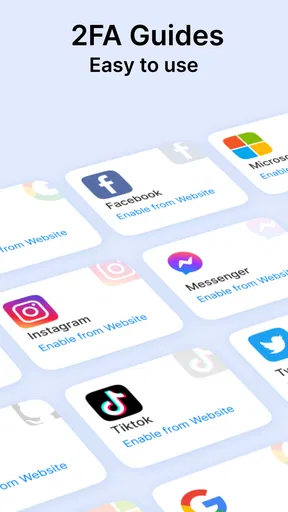
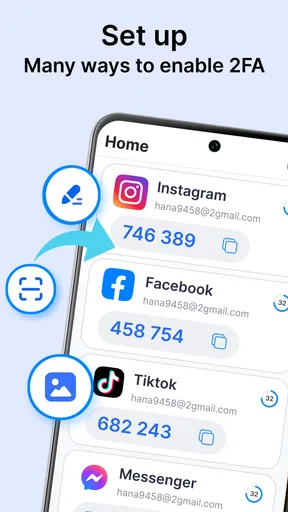
 Analysis by AppCompare
I usually reach for a two-factor authentication app when a new login asks for more than a password, or when I realise I have reused one for too many accounts. Authenticator - 2FA & Password brings one-time codes and password storage together, so the idea is to keep two routine security jobs in one place. It is a free tools app from FIRE Ltd, rated for Everyone, with a 2.9 average from around 900 ratings and over 500,000 installs. That mixed rating is worth keeping in mind: the concept is useful, but I would approach it as a tool to test carefully with non-critical accounts before trusting it with my entire digital life.
Before moving your accounts, decide what you need
The app’s appeal is clearest if you are setting up 2FA for a handful of personal accounts and want their codes close to the passwords you use to sign in. It may suit someone who finds switching between separate password and authenticator apps annoying. If you already use a password manager you trust and its built-in code generator meets your needs, moving everything may add work without much benefit. I would also avoid making any one app your only route into essential accounts until you understand how its backup and recovery process works.
Authenticator apps are not all interchangeable. Some focus almost entirely on generating temporary codes; others are attached to a broader password-management system or a particular device ecosystem. This app combines those roles, which can be convenient, but also means you are placing more of your login routine in one product. The trade-off is simple: fewer app changes during sign-in, but greater importance attached to protecting access to this app and keeping a separate recovery route for the accounts it guards.
Setting Up and First Impressions
Getting started with the app was pretty straightforward. I downloaded it from the app store, and within minutes, I was up and running. The interface is clean and intuitive, which I appreciate because nobody has time for a complicated setup. It even has a nifty tutorial for first-time users, which is a nice touch.
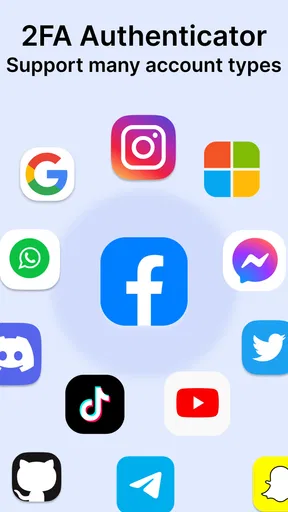
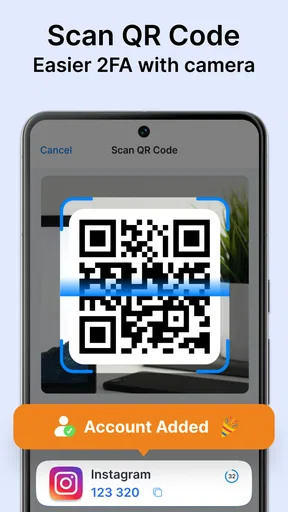
Once inside, the app asks you to link it to your accounts for two-factor authentication (2FA). The process is as simple as scanning a QR code, and boom, you’re all set. The app supports a wide range of services, from social media platforms to banking apps, which is incredibly convenient.
Features That Stand Out
What really caught my eye is the app’s ability to store passwords securely. It acts as a vault, where you can keep all your passwords under one roof. Now, I know what you’re thinking: “Is it safe?” Well, the app uses strong encryption, ensuring that your data is protected. I felt pretty confident about storing sensitive information there.
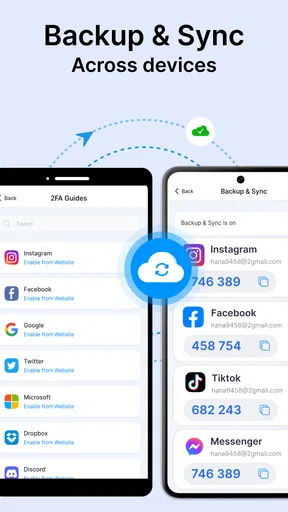
Another feature that deserves a shoutout is the backup option. You can back up your data to the cloud, which means if you ever lose your phone or switch devices, you won’t lose access to your accounts. It’s a small detail, but it makes a big difference when you’re dealing with security apps.
Worth Reading Before You Choose

EA SPORTS FC Mobile 26 Is a Bigger Football Game, but It Takes Time

Flipboard Shows What News Apps Must Do Beyond the Feed

Switching to Android Auto Means Rethinking Your Driving Routine

Google Calendar Makes a Crowded Week Easier to Manage

Ludo King Makes the Most of the Minutes Between Plans

Baby Panda World Brings Quick Play to Modern Phones, but Its Game Library Feels Busy
The Real-World Test
Alright, so I decided to put the app to the test in real-world scenarios. First, I set it up with my email and social media accounts. The two-factor authentication kicked in smoothly every time I logged in from a new device. It was reassuring to know that my accounts had an extra layer of security.
Next, I tried using the password manager feature. I’m someone who often forgets passwords, so having them all in one place is a lifesaver. The autofill option works seamlessly with browsers and apps, making login processes faster and hassle-free.
Make the handoff part of your routine
A realistic setup goes beyond scanning a code. When a service offers a recovery code during 2FA enrollment, I save it somewhere separate from the phone rather than assuming the authenticator alone is enough. Then I test the new login while I am still signed in on my usual device. That small check catches a mistyped setup or an unexpected prompt before it becomes a lockout problem.
For a practical first run, I would start with an account that is important but not the only key to work, finances, or family services. Sign out on a second device or browser, enter the password, and use the current code from the app. If that succeeds, repeat the process for other accounts one at a time. This pace makes it easier to notice which service has a different enrollment flow, and it leaves time to retain each service’s recovery method.
There is also a useful distinction between a password backup and an account recovery plan. A cloud copy can help when changing phones, but it does not replace the recovery options provided by the websites themselves. I would keep those options current and verify that the email address or phone number used for recovery is still accessible. That is especially important for the email account that can reset many of your other passwords.
Usability and Performance
Let’s talk about usability. The app runs smoothly without any noticeable lag, which is crucial for something you’ll use regularly. It’s available for both Android and iOS, and I tested it on both platforms with no issues whatsoever.
The app even sends you timely reminders to update your passwords, which is a nice feature to keep your accounts secure. Plus, it doesn’t drain your battery, which is always a bonus in my book.
Where the flow can break
The weak point in any authenticator routine is often the handoff between devices, not the moment you read a code. Before replacing a phone, I would check that the backup has completed and that I can still access the relevant account recovery methods. I would not wipe or trade in the old device until I had confirmed that the new one can generate the codes I need. If a service requires re-enrollment, its own account settings may be the place to resolve that rather than repeatedly trying an old code.
Another practical friction is that a one-time code expires quickly. If you are signing in on the same phone where the app is installed, switching back and forth can interrupt the flow, especially when the login page refreshes or the code changes. When possible, I keep the sign-in page open on a computer or another device, then read the code on the phone. That is not a special feature; it is simply a smoother way to use an authenticator.
The password vault and code generator also deserve different levels of caution. A password manager can make everyday access easier, but putting passwords and second-factor codes together reduces the separation between those two safeguards. For ordinary accounts that convenience may be worthwhile. For an account where losing access would be especially costly, I would consider whether a separate authenticator or a hardware security key gives me a better fit.
A Few Things to Consider
While the Authenticator - 2FA & Password app is fantastic, it’s not without its quirks. For instance, the user interface, while clean, might feel a bit too minimalistic for some. If you’re someone who prefers a more visually dynamic app, this might take some getting used to.
Also, while it supports a wide range of services, there are still a few niche apps that aren’t available for 2FA integration. However, given the vast number of supported services, this is a minor drawback.
Who should keep looking
I would be cautious about choosing this as the sole home for critical logins if you cannot comfortably maintain an independent recovery route. The average rating is modest, so I would not treat the app’s broad feature set as proof that it is the best choice for everyone. If your priority is a long-established password manager with a specific sharing, export, or recovery workflow, compare those details before moving a large vault. If your priority is only generating codes, a dedicated authenticator may feel simpler and keep that task separate from password storage.
There is also a cost detail to weigh before settling in: the app is free to download, but it includes in-app purchases ranging from $4.99 to $59.99 per item. I would check what is included in the free experience and what a paid option unlocks before building a routine around a feature I may later need. The current version is 69.0, and it requires Android 9 or later; the app is also available on iOS. Those basics matter if you are setting it up on an older phone or helping a family member use it.
Final Thoughts
Overall, I’m genuinely impressed with the Authenticator - 2FA & Password app. It delivers on its promise of enhancing security while keeping things user-friendly. The peace of mind it offers is priceless, especially in today’s digital age where data breaches are all too common.
If you’re on the lookout for a reliable app to manage your passwords and secure your accounts, I’d definitely recommend giving this one a shot. It’s got everything you need to keep your digital life safe and sound, and honestly, who couldn’t use a little more security?
My recommendation is to treat it as a convenient combined tool, not as a substitute for thinking through recovery. Start with a low-stakes account, confirm that codes work, and keep the account’s own recovery details somewhere you can reach without this phone. If that workflow feels comfortable and the app’s limits suit you, expanding gradually is more sensible than transferring every login in one sitting.
Pros
- User-friendly interface and setup.
- Supports multiple accounts seamlessly.
- Secure backup and restore options.
- No ads to disrupt user experience.
- Offline functionality for added security.
Cons
- Limited customization options.
- No biometric login feature.
- Occasional sync issues reported.
- Lacks dark mode theme.
- No desktop version available.
FAQs for Authenticator - 2FA & Password
What is Authenticator - 2FA & Password, and how does it work?
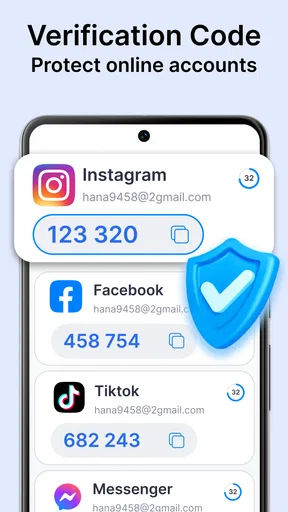
Authenticator - 2FA & Password is a security app designed to enhance online account protection through two-factor authentication (2FA) and password management. It generates time-based, one-time passcodes that you use alongside your regular passwords for an added layer of security. The app also helps you store and manage complex passwords securely.
Is Authenticator - 2FA & Password compatible with my devices?
Yes, Authenticator - 2FA & Password is available for both Android and iOS devices. It supports a wide range of online platforms and services that offer 2FA. Ensure your device meets the minimum operating system requirements specified in the app store to ensure compatibility and optimal performance.
How secure is my data with Authenticator - 2FA & Password?
Your data is highly secure with Authenticator - 2FA & Password. The app employs advanced encryption standards to protect your passwords and 2FA codes. It does not store or transmit your data to external servers, ensuring your information remains private and accessible only to you.
Can I use Authenticator - 2FA & Password offline?
Yes, Authenticator - 2FA & Password can be used offline. Once set up, the app generates 2FA codes without requiring an internet connection, making it highly reliable even when you’re not online. This feature ensures that you can always access your accounts securely, regardless of your connectivity status.
What should I do if I lose access to my Authenticator app?
If you lose access to your Authenticator app, it's crucial to have backup codes stored safely elsewhere. Most services provide recovery options, such as backup codes or alternative verification methods. Contact the support team of the affected service for assistance in regaining access to your account.


